Home Slideshow Remote™ Logic Server™ Support
Home » Support » Help and How To » Logic Server Connection Troubleshooting
Products
• Slideshow Remote™
Features
Notes
AirPrint
Offline Viewer
External Display
Gallery
Buy Now
Education
Quick Guide
• Logic Server™
Features
Screenshots
Download
• OfficeApp™
Features
 
Support
• Help and How To
Slideshow Remote FAQ
Logic Server FAQ
PowerPoint Tips
Windows Firewall
McAfee Firewall
Norton Firewall
Ad Hoc Network
Connection Issues
• Contact Us
 
Press
• Press Releases
• Images for Media
• Press Relations
 
Links
• Facebook
• Twitter
• Google+
• Pinterest
• YouTube
• LinkedIn
 

Logic Server Connection Troubleshooting


This troubleshooting guide let you resolve connection issues with Logic Server.
Please follow the next verification instructions in order.

  • Issue: Device don't appear in Logic Server devices list, impossible to establish connection, connection is lost or slow data transfer.
  • Application: Slideshow Remote™
  • Devices: iPad, iPhone, iPod Touch

1) Restart your PC and mobile device

In most cases this step eliminates connection issues. It allows to complete Logic Server installation process and enable all new settings.

2) Turn OFF Bluetooth on iPhone

Bluetooth interferes with Wi-Fi and causes connection issues as well as slow slide changes. Turn off Bluetooth on your mobile device from the settings icon.

3) Configure firewall on PC

For best results the Windows firewall must be configured. Any another antivirus and firewall program must also be configured.

  1. Allow Logic Server to accept inbound/outbound calls.
  2. Allow incoming connections on TCP port 80 (HTTP)
  3. Allow incoming connections on UDP port 5353 (MDNS)

If the firewall is not properly configured you could encounter the following problems:

  • Your device doesn't appear in the Devices List
  • Automatic and manual connection modes fail
  • Error "Unable to connect to Logic Server"
  • Send error 10054
  • Connect error 10061

Refer to the following procedures and your software documentation:

4) Turn OFF Proxy Server on PC and iPhone

Proxy servers prevent connection between Slideshow Remote and Logic Server. Warning: In some corporate environments proxy settings are configured by your system administrator.

Start > Internet Explorer > Tools button > Internet Settings > Connections tab > LAN Settings > uncheck Use a proxy server for your LAN

You must also disabe proxy server on your iPhone:

Settings > Blue arrow beside yor Wi-Fi connection > HTTP Proxy > OFF.

5) Enable only one IP network interface

Slideshow Remote and Logic Server must be on the same network. If you have more than one network interface you must enable only one. Many laptops has both Wi-Fi an Ethernet LAN enabled, thus having two IP addresses.

6) Turn OFF VPN on iPhone and PC

Bonjour for Windows can not communicate via a virtual private network.

7) Test the iTunes Remote application from Apple

Slideshow Remote works in a similar way as the iTunes Remote from Apple. If you can't pair the iTunes Remote with your PC, Slideshow Remote may also not work. 

8) Install the latest version of Logic Server

9) Install the latest version of iTunes

iTunes is available from Apple and will install Bonjour for Windows, a required component to allow automatic connections.

10) Run Logic Server

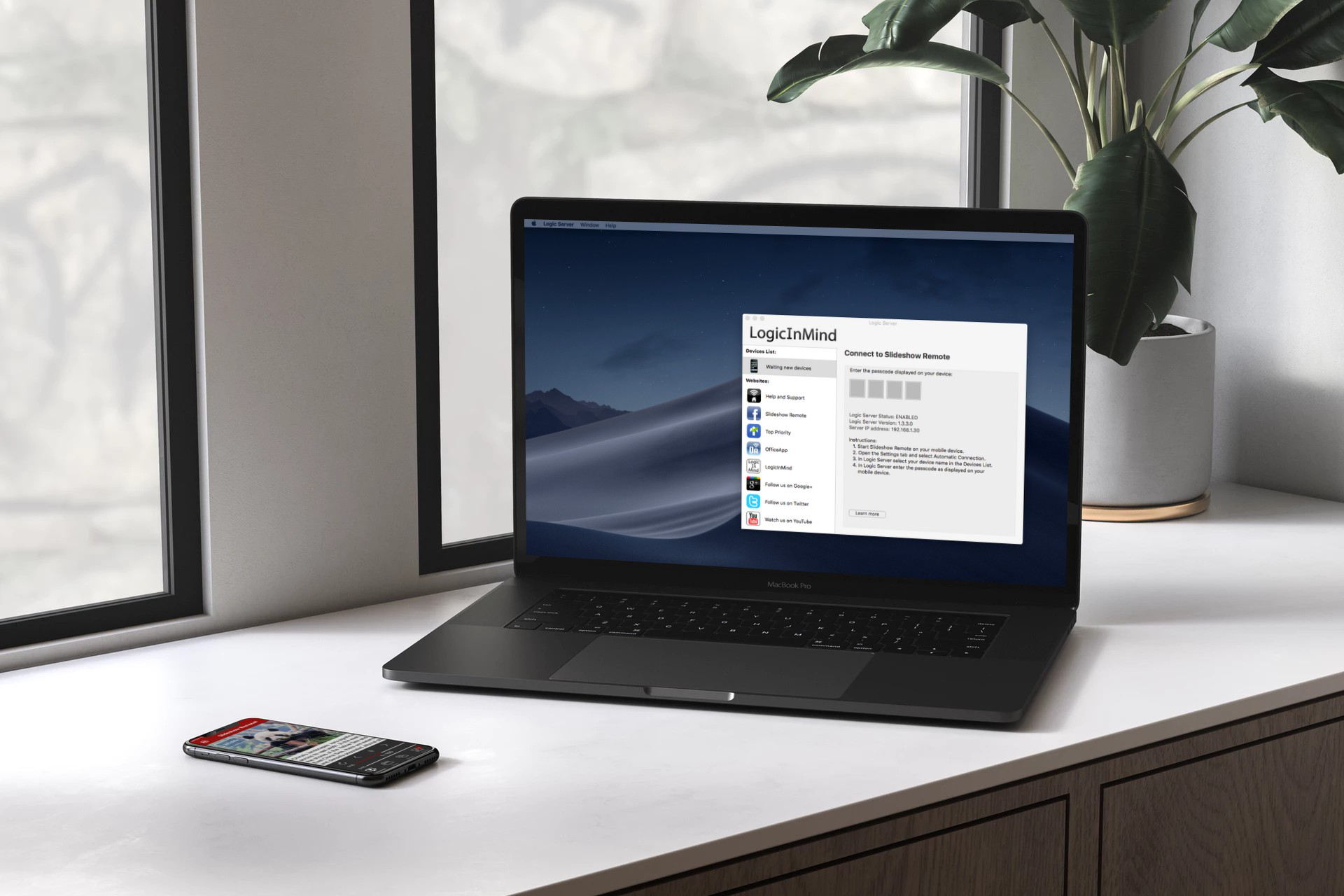
Open the Start menu, point to All Programs, LogicInMind and click Logic Server. When running Logic Server's icon is visible in the Windows system tray.

11) Check Logic Server status

Open Logic Server and read the status page.

  • If Logic Server status is disabled or Logic Server cannot open its TCP port open the Settings page and type a new TCP port number. The default value is 80 but you can chose any available value between 1 and 65534.
  • If Bonjour for Windows is not installed you should install iTunes or use the manual connection mode.
  • If Bonjour for Windows is disabled you should restart the service or use the manual connection mode.

12) Check if Wi-Fi is enabled on your iPhone

The Wi-Fi icon must be visible in the top status bar.
Your Wi-Fi netowrk name (in the Wi-Fi settings) must be the same as on your PC (example: "My Home Network", "ABC Corp", "lan1"). Logic Server is compatible with ad-hoc Wi-Fi networks.

13) Call Logic Server from your PC

Move the mouse cursor over Logic Server system tray icon.
The message "Logic Server (Enabled)" should appear.

Start Internet Explorer and navigate to this address: http://127.0.0.1.
You should read the page "Logic Server Welcome!".

If Logic Server is disabled or the page not accessible, you may have a local web server or another application server listening to TCP port 80. Only one program can read this port at any time. Advanced users could use the command "netstat -a -b -n" to identify what application uses TCP port 0.0.0.0:80 or 127.0.0.1:80.

14) Call Logic Server from your device

You can skip this step if you are not familiar with networks.

Find the IP address of your PC on your LAN network.
Click on Start menu, All Programs, Accessories, Command line.
Type "ipconfig", hit Enter, and find your IP address.
Your IP may look like 10.0.0.1 or 192.168.0.1
Your IP is not like: 127.0.0.1, 10.254.254.254, 255.255.255.255.

Start Safari on your iPhone/iPod and navigate to your IP address, i.e.: 192.168.0.1
If the page could not be reached your device is blocked from accessing your computer by a router, a firewall or an antivirus software.

15) Close iPhone 3G mode

The current version of Logic Server works over a LAN network, not Internet.

16) Remove apostrophe

Some users reported issues when the iPhone has an apostrophe in the device name. Simply connect your iPhone to iTunes and rename the device in the list.

17) Belkin Routers

Belkin users should install latest firmware update. For example F7D8302 Play N600 Wireless Dual-Band N Router has a fix to support Apple's Bonjour protocol.


Copyright © 2009-2013 LogicInMind. All Rights Reserved.